
Saving and loading
Your towers live in your own browser, on your own device. The game keeps them in the browser’s database for the site. Nothing is uploaded, and there is no account to sign into.
The Auto-save
Section titled “The Auto-save”The game saves the tower you’re playing every 30 seconds, on its own, into the Auto-save. When you come back, Continue on the opening screen picks up where you left off. File > Save (Ctrl+S, or the 💾 button) saves into the Auto-save right away.
File > Close saves the tower you’re playing into the Auto-save and goes back to the opening screen, the way a program closes a document. Continue brings the tower back, paused. If the game can’t save it (say, the browser’s storage is full), the tower stays open and the game tells you, so nothing is lost.
My Towers
Section titled “My Towers”My Towers is a folder of tower files the game keeps for you, as many as your device has room for. Each file is a whole tower, saved the moment you saved it, and it stays put while the Auto-save moves on with the tower you’re playing. Keep a copy before you try something risky, or keep several towers going at once.
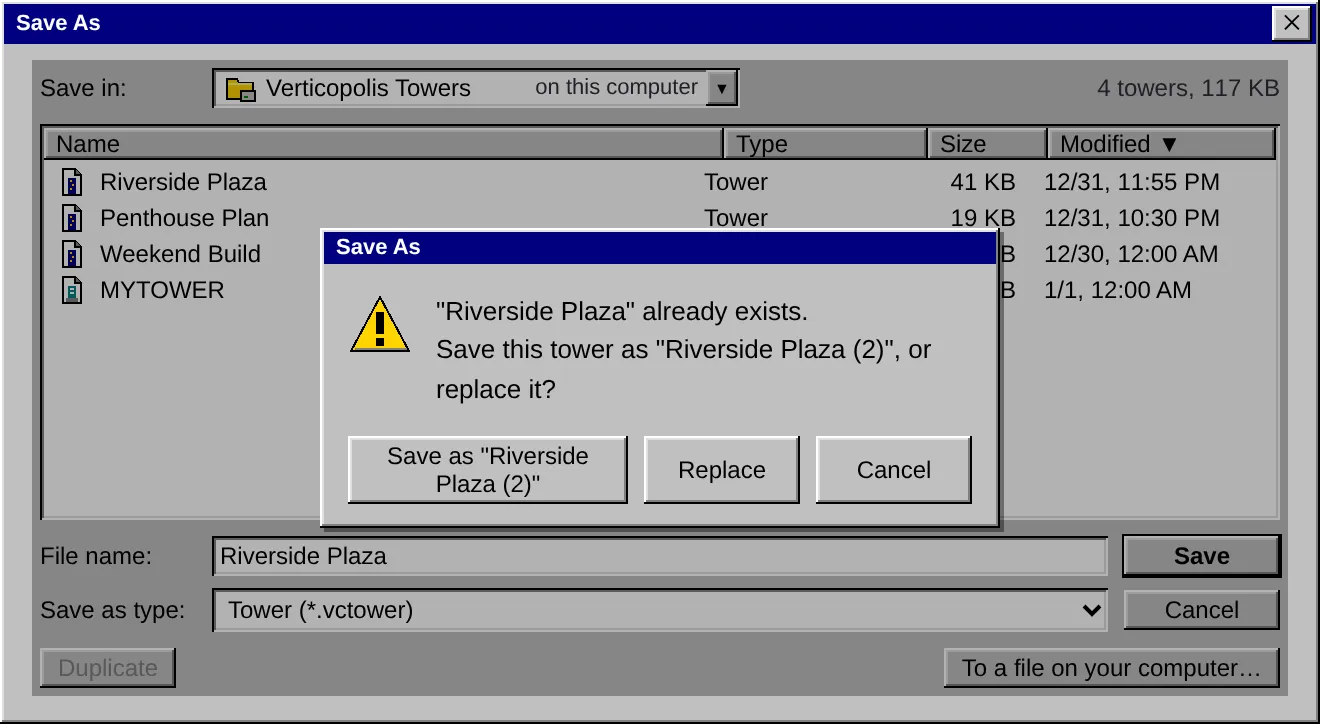
File > Save As… (Ctrl+Shift+S) opens the Save As window. Type a name in File name and click Save, or pick a tower in the list to save over it. If a tower already has that name, the game asks first, the way Windows does: Save as “Name (2)” keeps both towers (the next free number is picked for you), Replace saves over the old one, and Cancel goes back. The tower you saved becomes this tower’s file, and from then on File > Save saves into that file as well as the Auto-save.
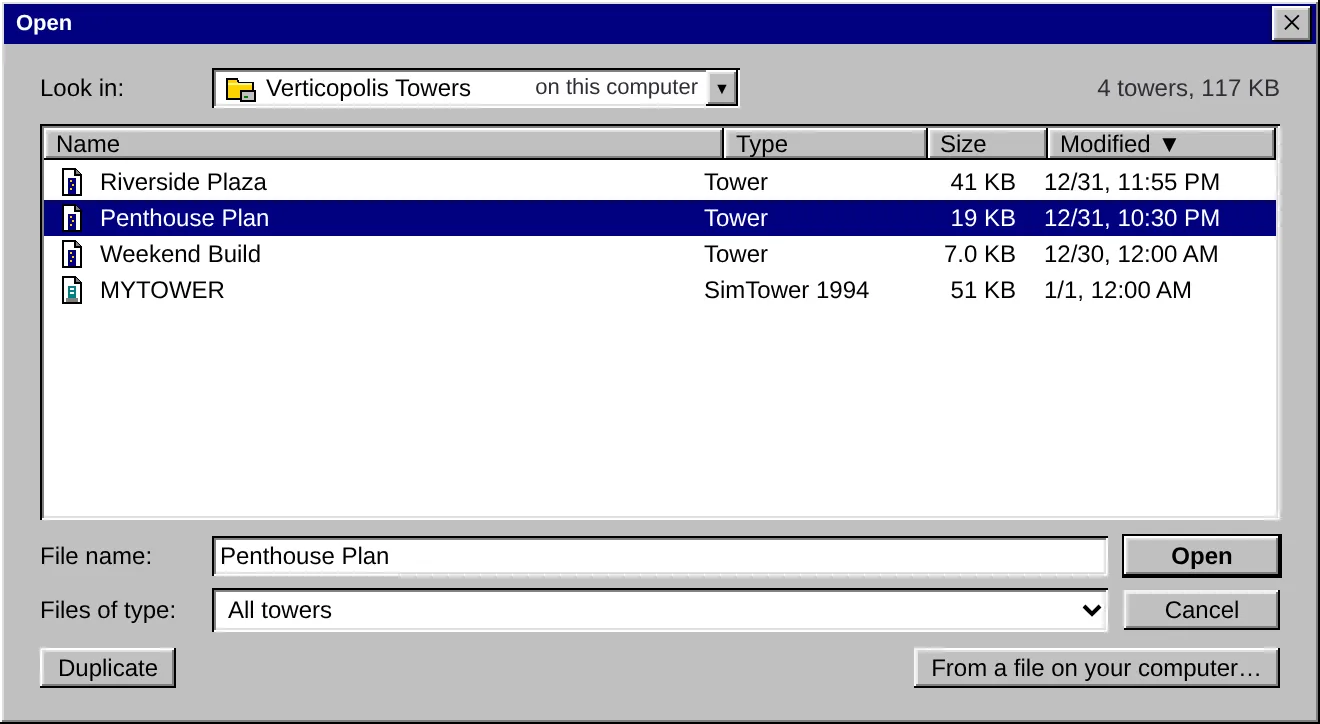
File > Open… (Ctrl+O) opens the Open window. Double-click a tower, or pick it and click Open. The Auto-save sits at the top of the list. Open Tower… on the opening screen opens the same window.
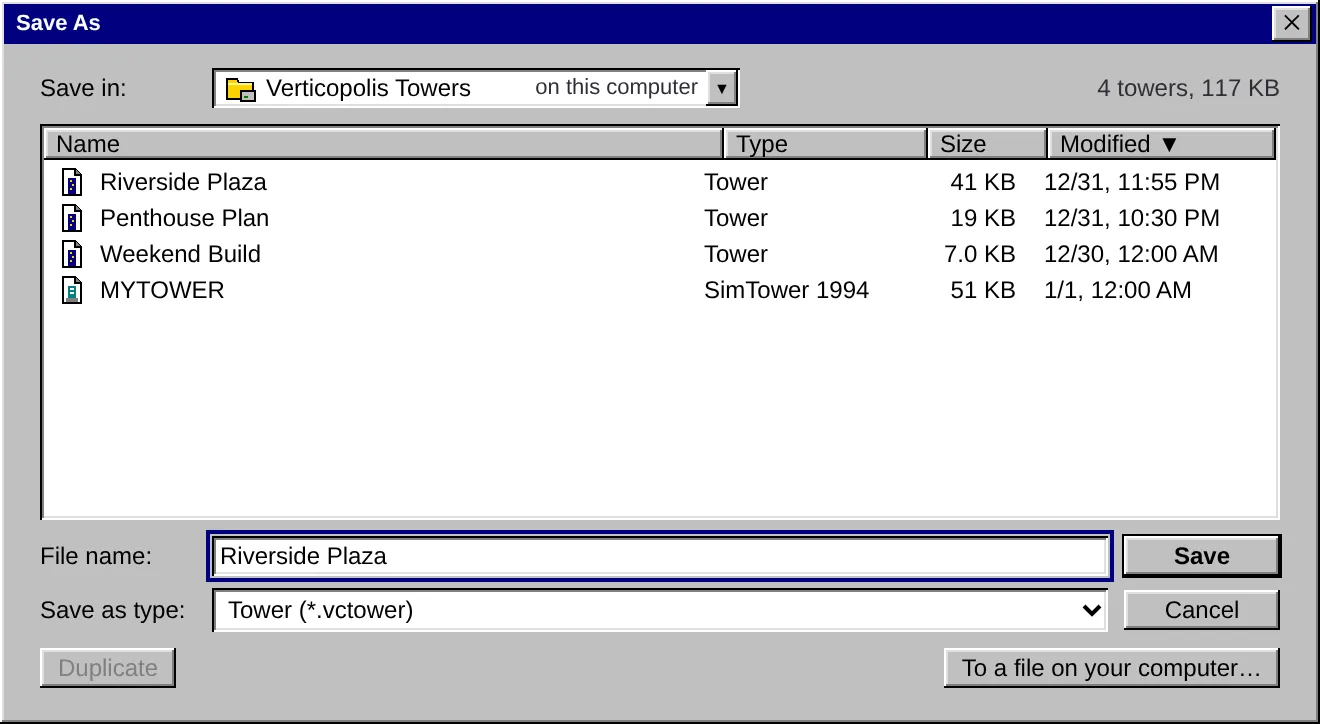
Both windows list each tower’s Name, Type (Tower, or SimTower 1994 for a .TDT file), Size and when it was Modified. Click a column’s heading to sort by it, and click again to turn the order around. Files of type shows only one kind of file. The line beside Look in says how many towers the window lists and how much room they take, the Auto-save included in the Open window.
Looking after your towers
Section titled “Looking after your towers”Pick a tower in either window, then:
| To | Do this |
|---|---|
| Rename it | Rename, or F2. Type the new name and press Enter (Esc keeps the old one). |
| Make a copy | Duplicate, or Ctrl+C then Ctrl+V. The copy is called “Copy of” and the tower’s name. |
| Delete it | Delete, or the Delete key. The game asks first, and a deleted tower can’t be brought back. |
| See every choice | Right-click it, or press the context menu key (Shift+F10). |
The Auto-save has no Rename, Duplicate or Delete: it’s the game’s own.
To add a tower file from your computer, drag it onto the Open or Save As window. Drop a tower file anywhere else on the game and it opens, the same as From a file on your computer….
If your device runs out of room, the game says so and saves nothing. Delete some towers you no longer need, or save a tower to a file on your computer (below), and try again.
Coming from an earlier version? Your three save slots are copied into My Towers the first time you open this version, each under its slot’s name or its tower’s.
A folder on your computer
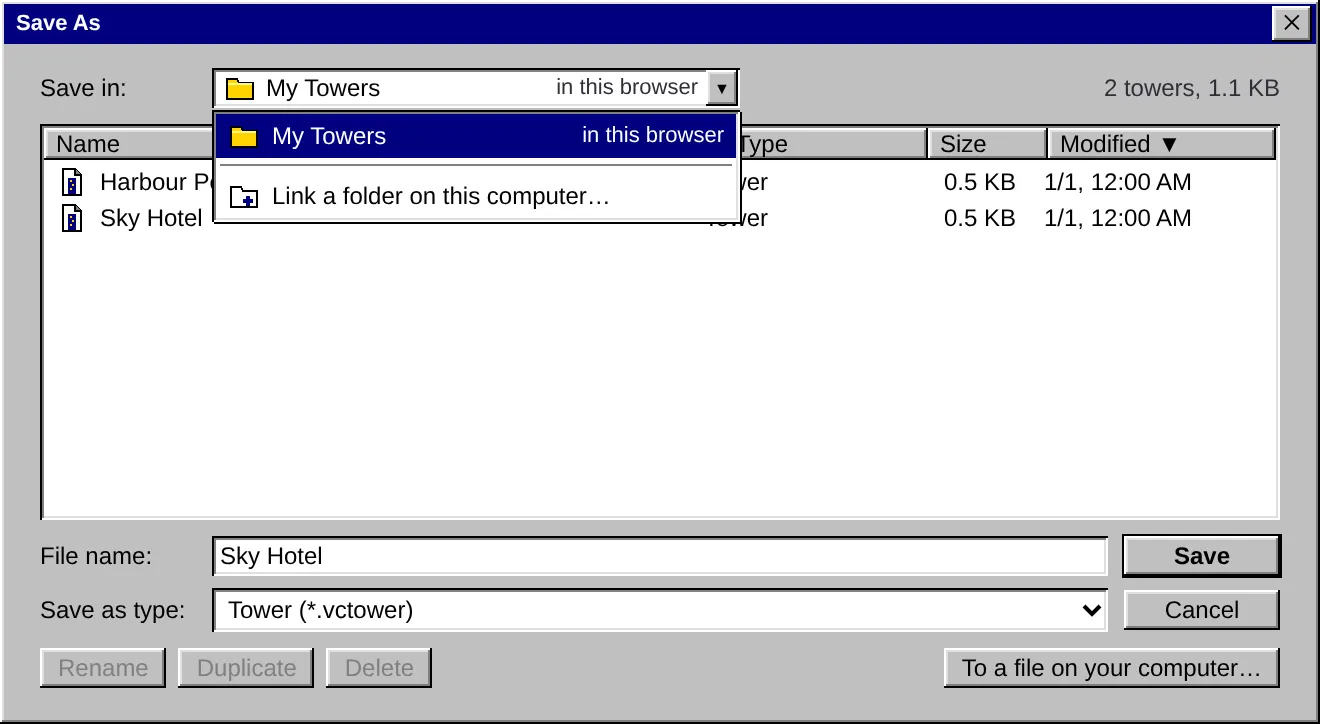
Section titled “A folder on your computer”In Chrome, Edge and other Chromium browsers on a computer, and in Chrome on Android, the Open and Save As windows can also use a folder of your own. Click the Look in box (it reads Save in in the Save As window) and choose Link a folder on this computer…, then pick a folder and let the browser give the game access. The box now lists two places: My Towers, in this browser, and your folder. Choose either one.
Towers you save into your folder are ordinary .vctower files, so you can back them up, sync them with a cloud drive, or copy them to another machine like any other file. .TDT files from 1994 in the folder are listed too, and open the same way. Once a tower comes from your folder, File > Save writes it back to the same file.
| In your folder you can | You can’t |
|---|---|
| Open a tower, save a tower, and Duplicate one | Rename or delete a file. Do that in your computer’s own file manager. |
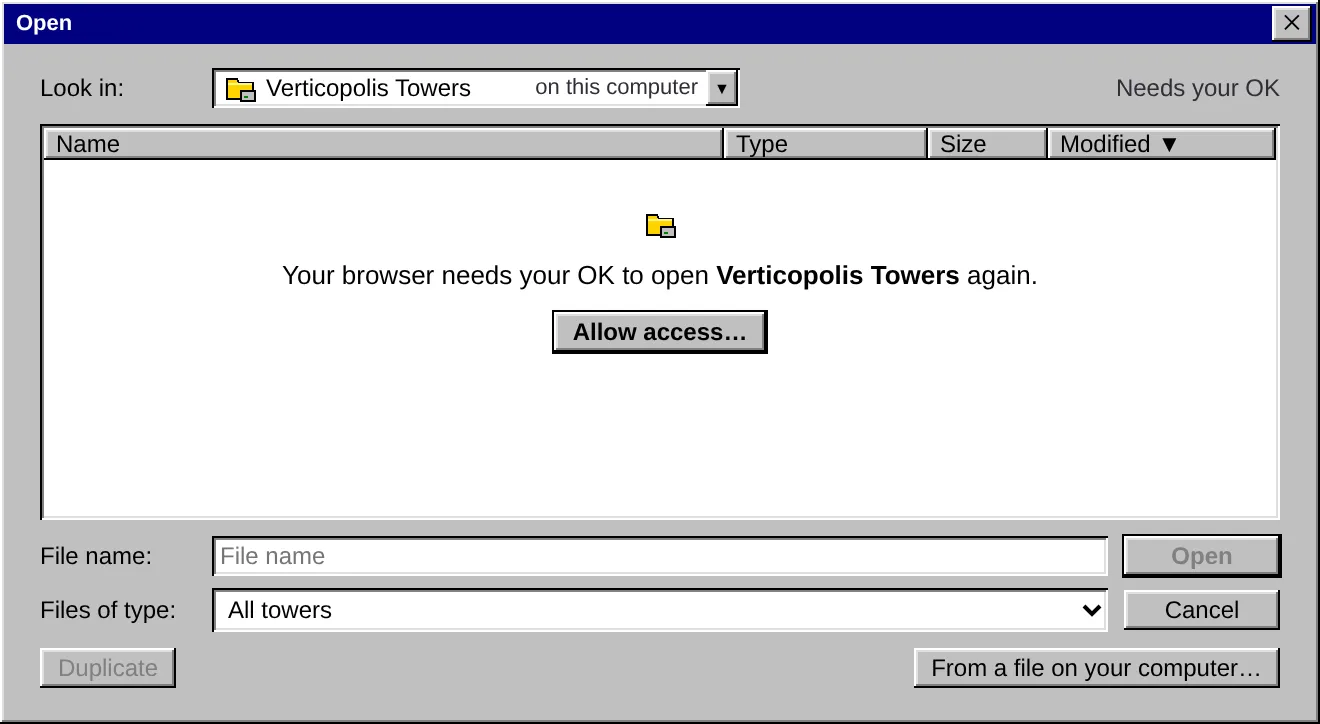
The game only reads and writes files in the folder you picked, and never deletes one. Each time you come back, the browser may ask for your OK again before the game can open the folder. Click Allow access… in the window. Some browsers offer Allow on every visit, so they stop asking.
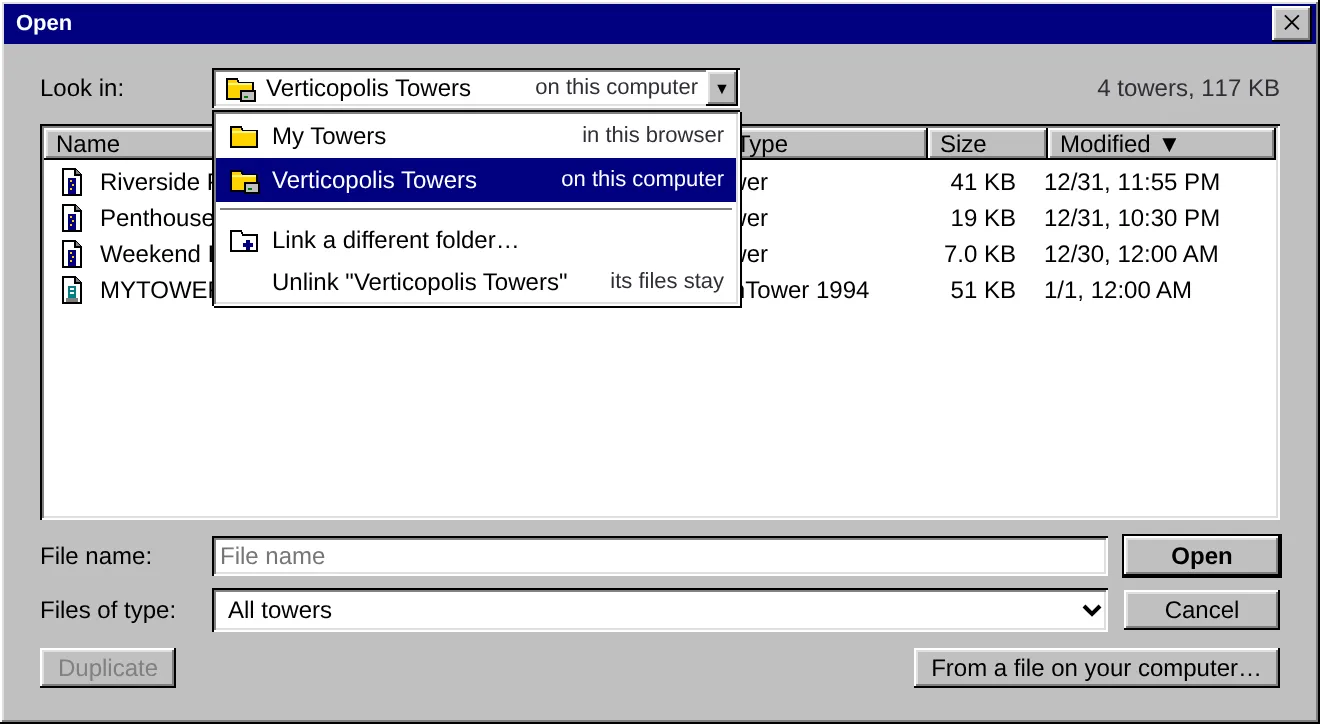
To stop using the folder, choose Unlink in the Look in box. Its files stay where they are. Linking a folder doesn’t change My Towers or the Auto-save.
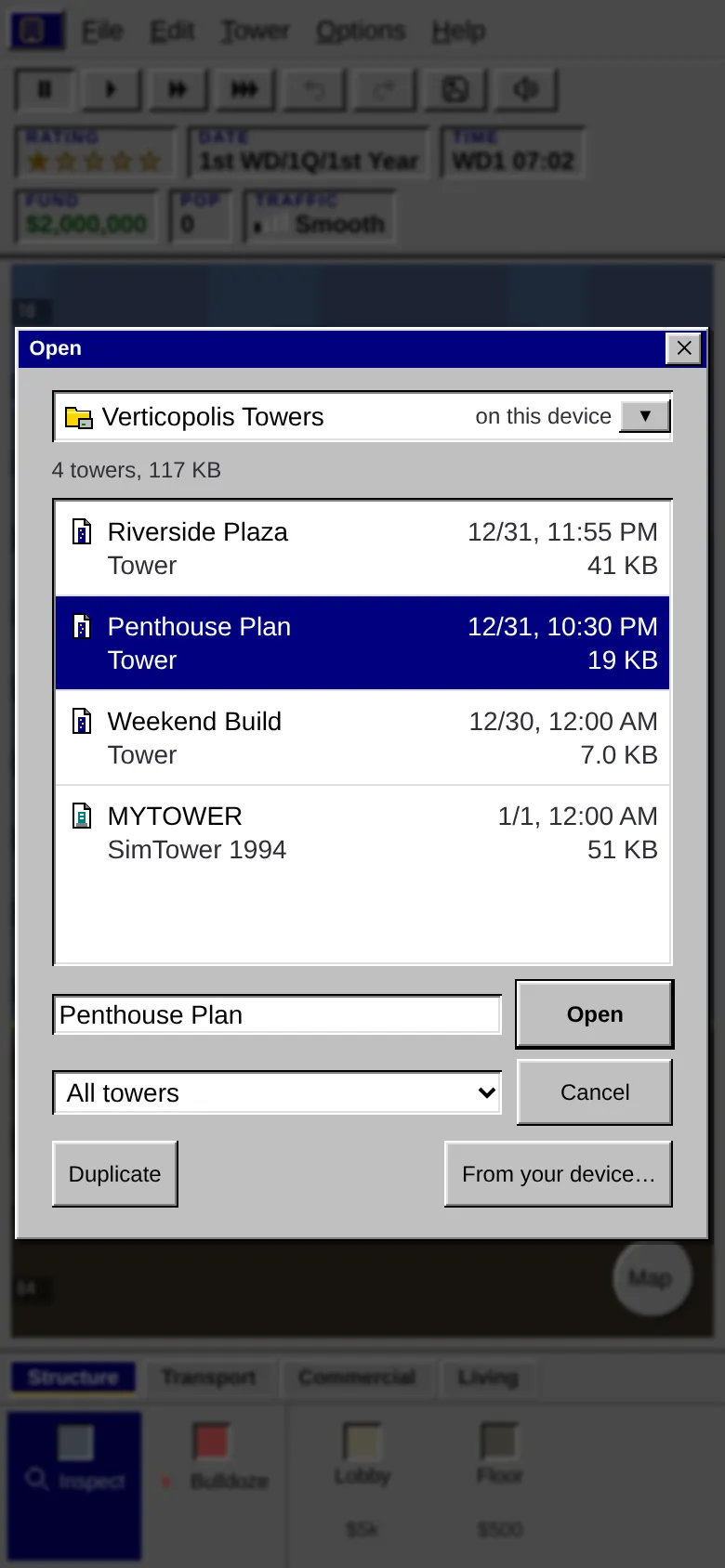
On a phone the box says on this device, and each tower takes two lines.
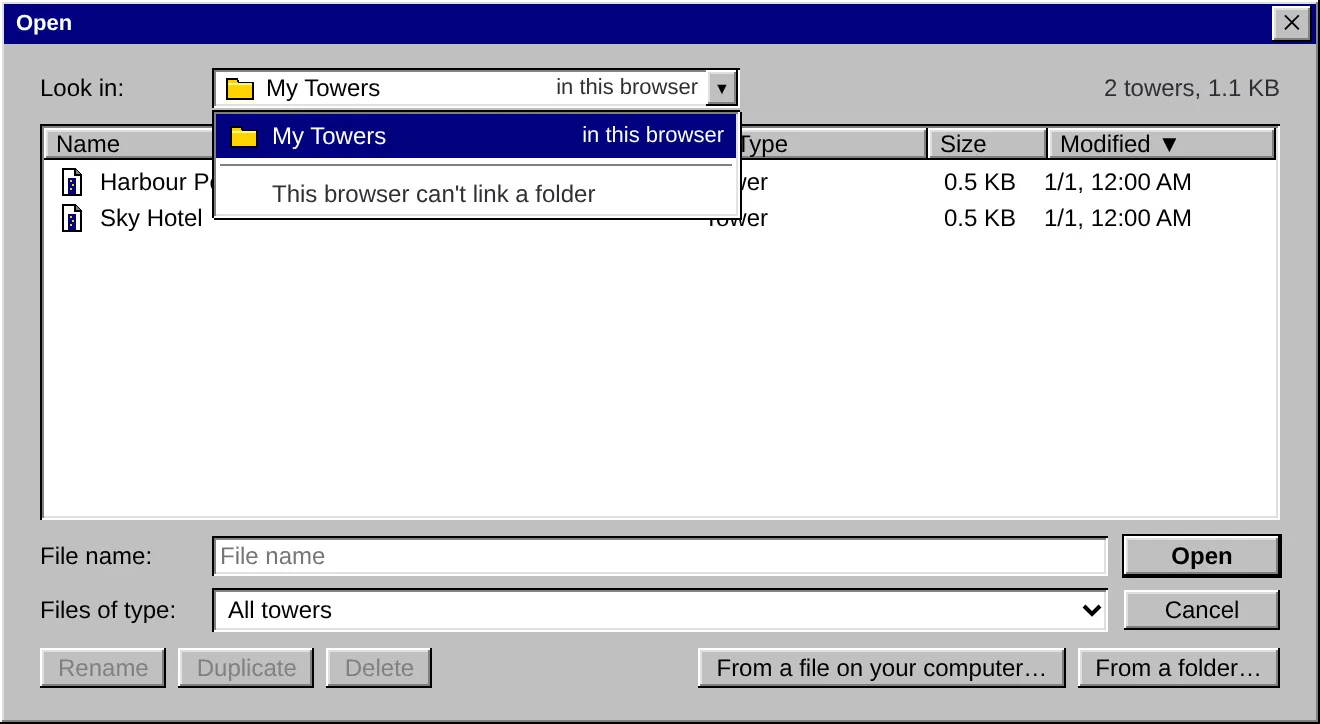
Other browsers (Safari, Firefox, and phones without Chrome) can’t keep a folder linked. In those, the Open window has From a folder… instead, which copies the towers from a folder you pick into My Towers.
Saving to a file
Section titled “Saving to a file”To a file on your computer… in the Save As window packs your tower into a .vctower file and downloads it. That file is the way to:
- keep a backup somewhere safe,
- move a tower to another device or browser, or
- share it with a friend.
From a file on your computer… in the Open window brings a .vctower back in, and keeps a copy of it in My Towers once it opens. On a phone or tablet these read To your device… and From your device….
Because My Towers lives in your browser, clearing your browsing data for the site deletes it. Save anything you’d hate to lose to a file on your computer too. Importing and exporting has the details.
Towers from the 1994 game
Section titled “Towers from the 1994 game”Have an old SimTower save? Open its .TDT file the same way, with From a file on your computer… in the Open window. The game reads the tower and lists what it brought over, and anything it couldn’t. A 1994 tower comes in as a Classic tower, and the .TDT file itself goes into My Towers, so you can open it again later.
You can also go the other way. Choose File > Save As… on a Classic tower, then To a file on your computer… and For SimTower (1994)…, to download a .TDT file the original game can open. This is still experimental: it’s known to work for smaller towers. A Modern tower can’t be saved for 1994, since the original has no room for the things Modern adds. See Importing and exporting for what carries over each way.
If something goes wrong
Section titled “If something goes wrong”- “Your tower isn’t being saved.” This notice stays in the top corner when the game can’t write its saves. Most often the browser won’t keep site data: a private or incognito window, site storage turned off for the site, or a disk that’s full. Click Save As… to save the tower to a
.vctowerfile right away, then play in a normal window with site storage allowed and load the file back in. The notice goes away by itself once saving works again (the game tells you so), and Dismiss hides it until the next time saving fails. File > Save (the 💾 button) also says at once when a save didn’t work. In a window that keeps no site data, Open… and Save As… go straight to a file on your computer. - A save this version can’t read. If a newer version of the game wrote it, update the game (see Installing and updates) and try again. The game keeps the unreadable save aside. The Open window says so, and its Download it button gives you a copy to attach to a bug report.
- If the game stops. If the game engine crashes, the game reloads your tower from its last autosave. If it crashes again, it stops and says so. Your saves are still on your device, and Reload tries again. On a small or sideways screen the card’s text scrolls, and its buttons stay at the bottom where you can reach them.
- Something’s wrong in a tower. Please report it, and attach the tower’s
.vctowerfile (File > Save As…) if you can.