
The desktop
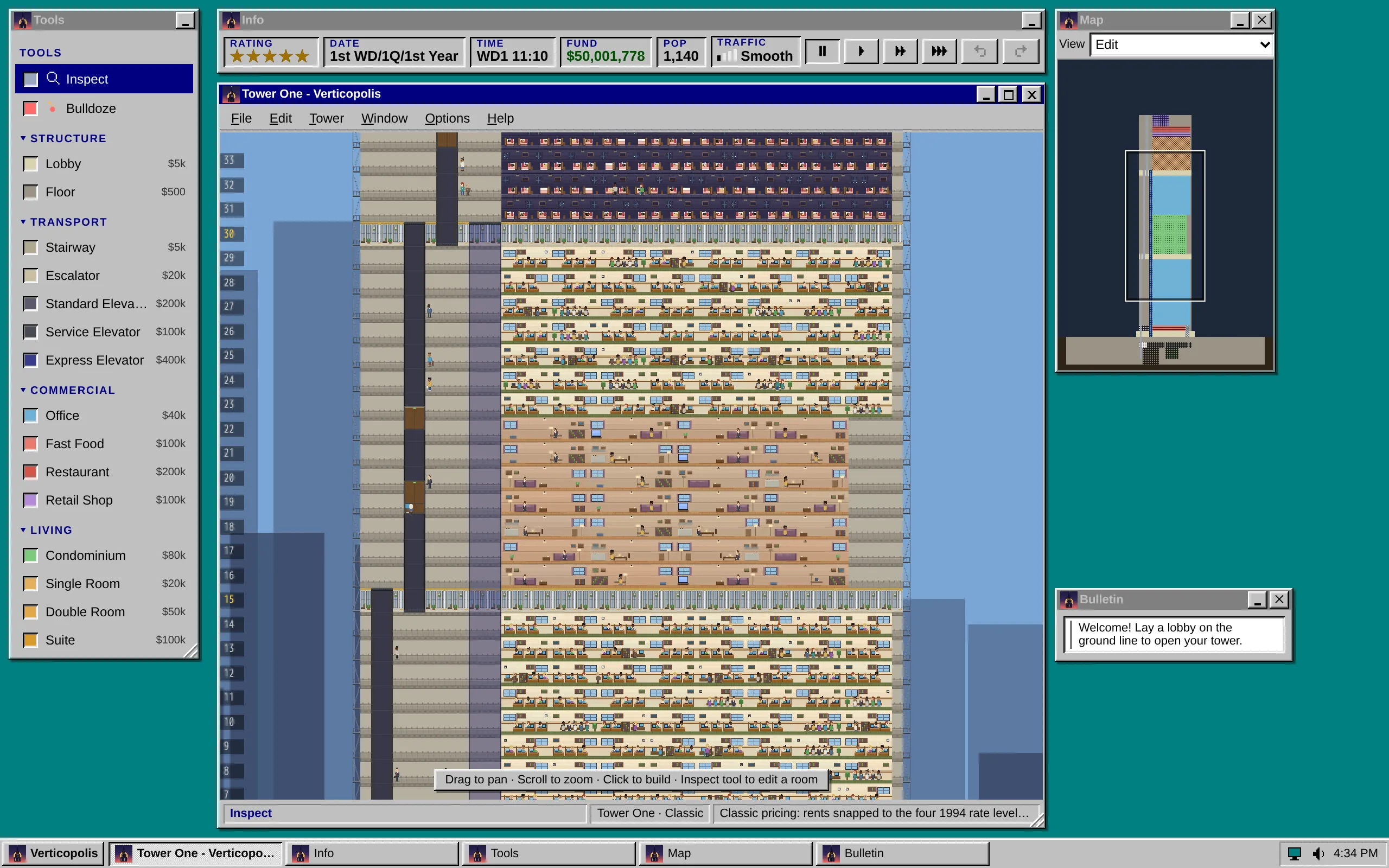
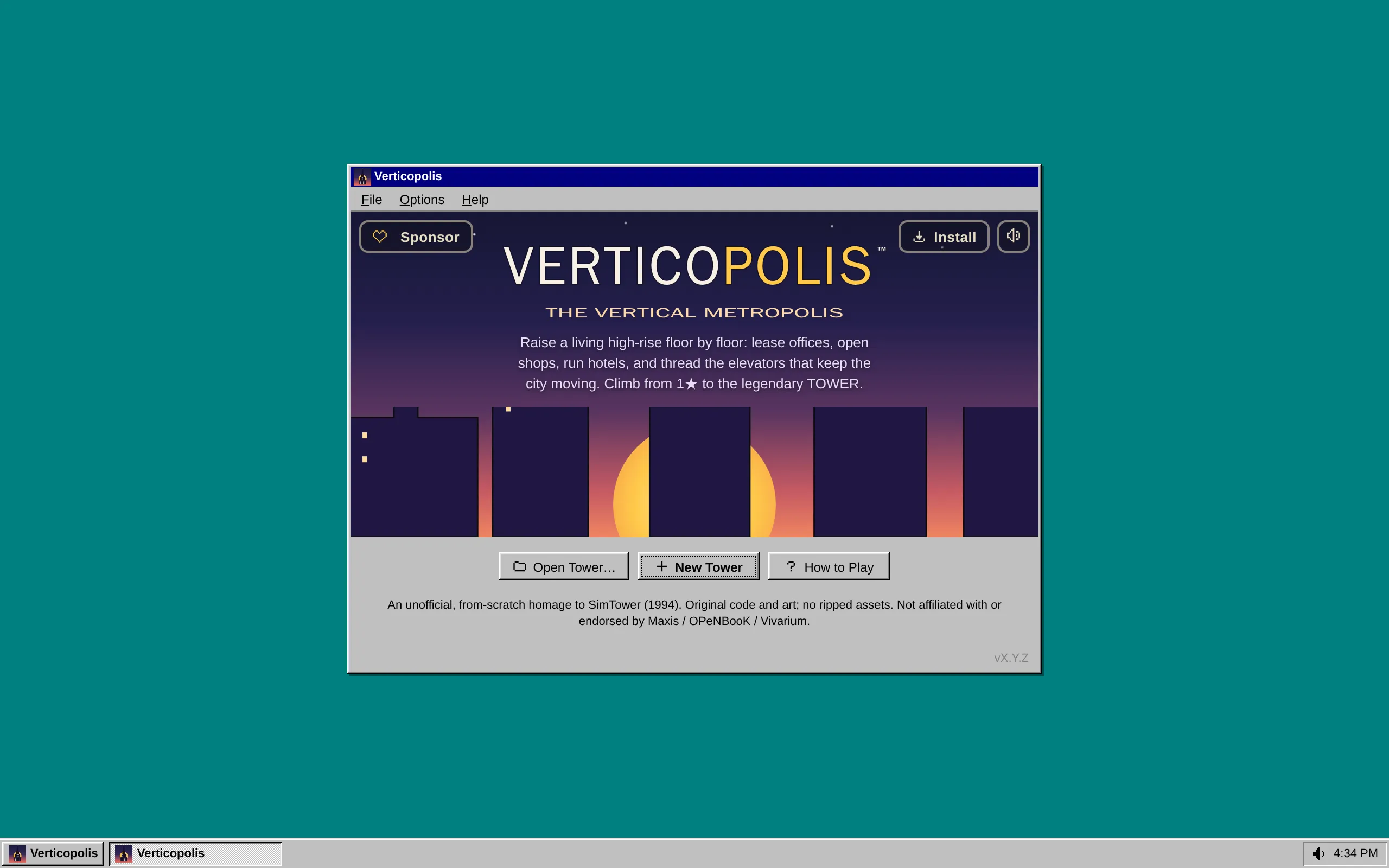
On a computer, Verticopolis runs the way programs did in 1994: every part of the game is its own window on a teal desktop, and a taskbar runs along the bottom. Move the windows wherever you like, shrink them to the taskbar, or give the tower the whole screen.
The desktop needs a window at least 1024 by 600 and a mouse or trackpad as your main way of pointing. A touchscreen laptop gets it too. Phones and tablets keep their own layout, a tablet with a pen or a keyboard trackpad included; add ?desk=on (below) to use the desktop there.
The windows
Section titled “The windows”| Window | What it holds | Move | Resize | Minimize | Maximize | Close and reopen |
|---|---|---|---|---|---|---|
| The tower | The menu bar, the tower and the status bar | Yes | Yes, from the corner | Yes | Yes | Its ✕ is File > Close |
| Info | A strip across the top: the rating, date, time, funds, population and traffic, and the speed and undo buttons | Yes | No | Yes | No | Never closes; Window > Info brings it back |
| Tools | Every building tool | Yes | Taller or shorter, from the corner | Yes | No | Never closes; Window > Tools brings it back |
| Map | The whole tower in miniature | Yes | No | Yes | No | ✕, then Window > Map |
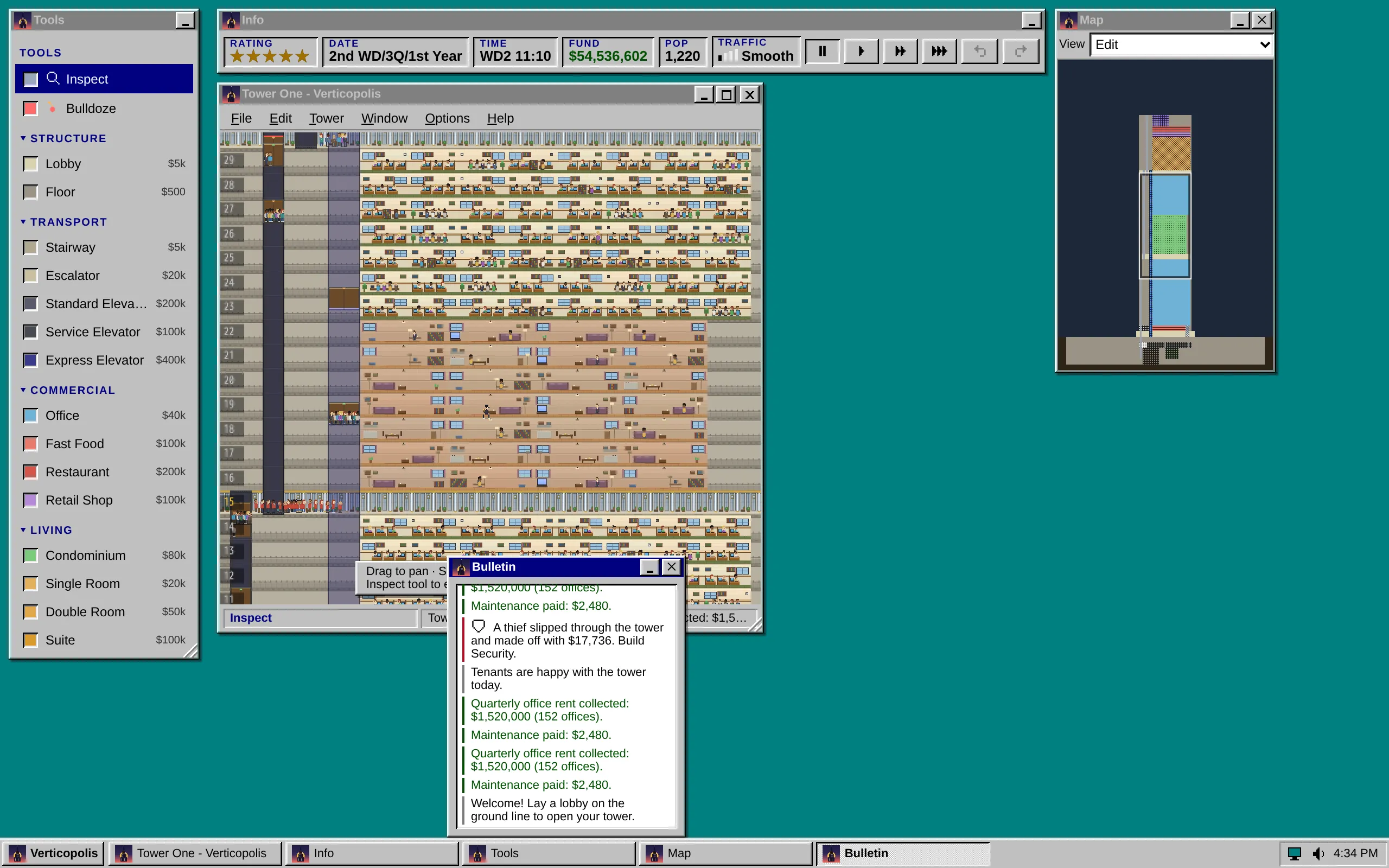
| Bulletin | The tower’s messages | Yes | No | Yes | No | ✕, then Window > Bulletin |
| Tower Info | The tower’s name, rules and counts | Yes | No | Yes | No | ✕, then Window > Tower Info |
| Control Panel | Display, Sounds and Settings | Yes | No | Yes | No | ✕, then the Verticopolis menu or the tray |
- Move a window by dragging its title bar. Click a window, the tower included, to bring it to the front. The window with the blue title bar is the one you’re using; the others turn gray.
- Minimize with the _ button. The window waits on the taskbar; click its button there, or pick it from the Window menu, to bring it back.
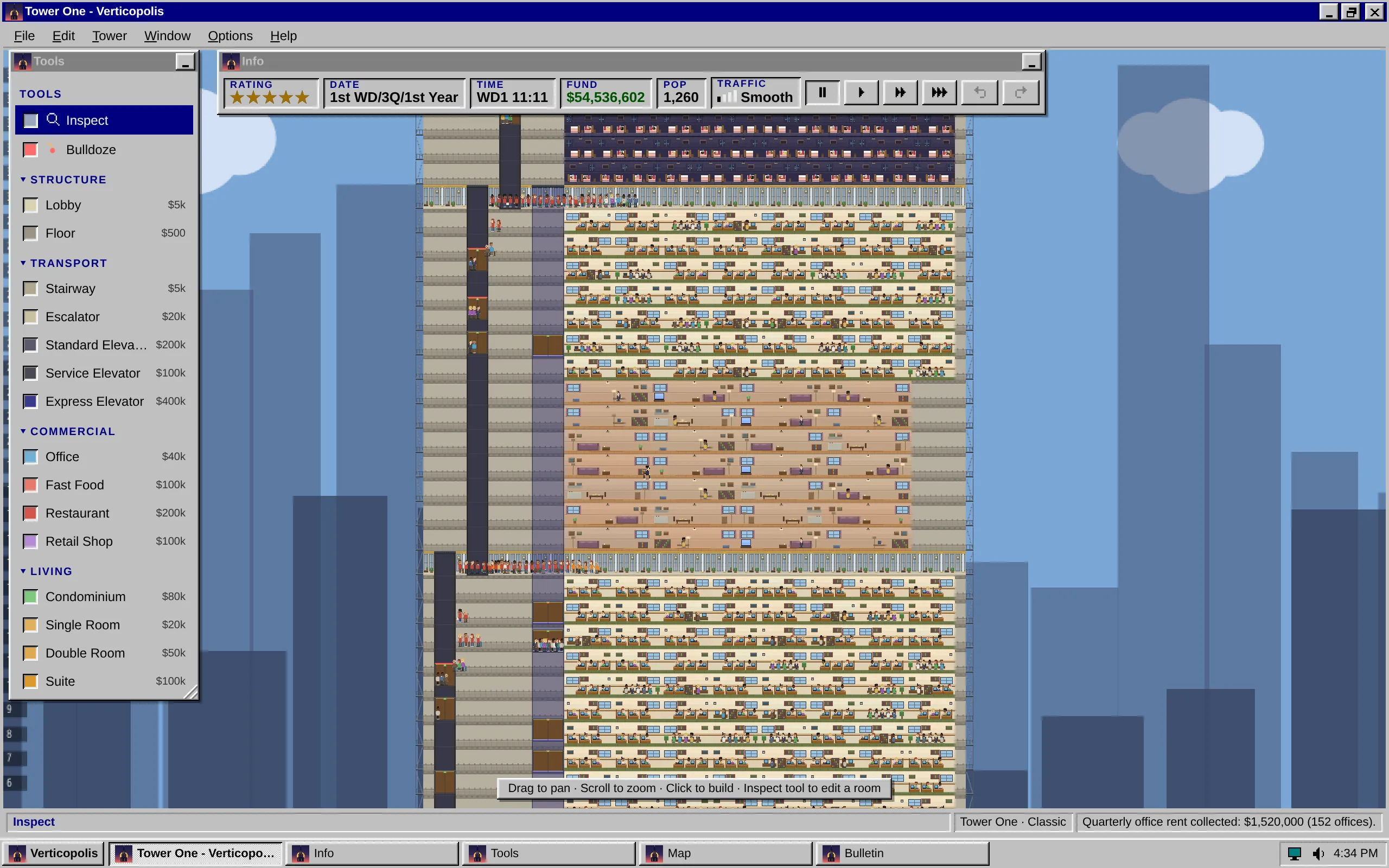
- Maximize the tower with the □ button, or double-click its title bar. While it fills the screen the small windows float over it, and any that sat over its menus step down below them. Press the button again to put the tower back; the small windows go back up too.
- Right-click a window’s title bar or its taskbar button for its window menu: Restore, Minimize, Maximize (the tower only) and Close, each grayed when it doesn’t apply. Info and Tools never close. Shift+F10 opens it from a taskbar button too.
- Resize the tower by dragging the ridged corner at its bottom right. A dotted outline follows the pointer, and the tower takes the new size when you let go.
The game remembers where you put every window, their sizes, and whether the tower was maximized, even after you close it. Make the browser window smaller and any window that would hang off the edge moves back onto the desktop.
The Window menu
Section titled “The Window menu”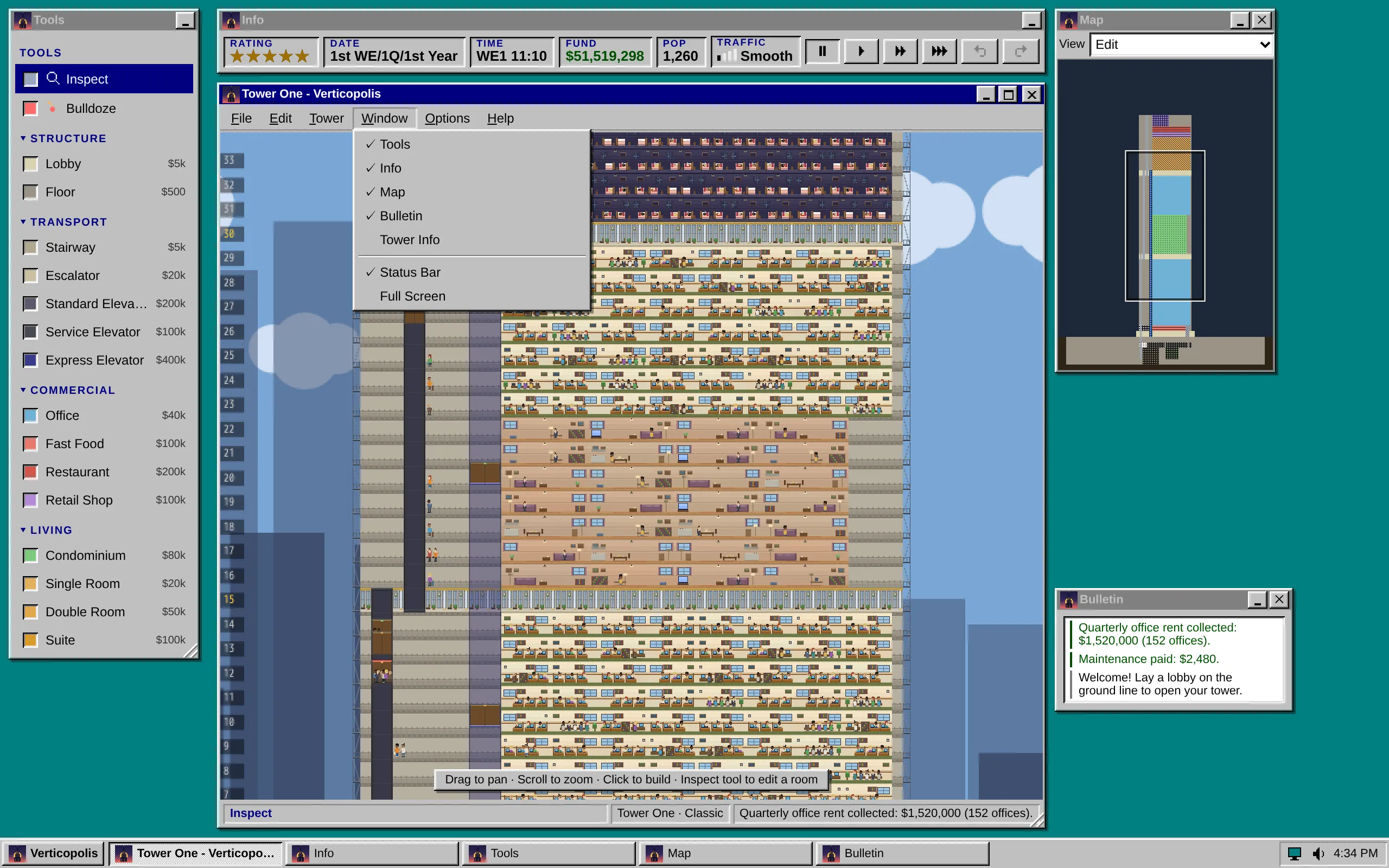
On the desktop the tower’s menu bar has a Window menu between Tower and Options. Pick Tools, Info, Map, Bulletin or Tower Info to bring that window up, whether it was closed or minimized; a check mark shows each one that’s open. Status Bar and Full Screen sit at its foot on the desktop, below a line, in place of their spots in Options.
The taskbar
Section titled “The taskbar”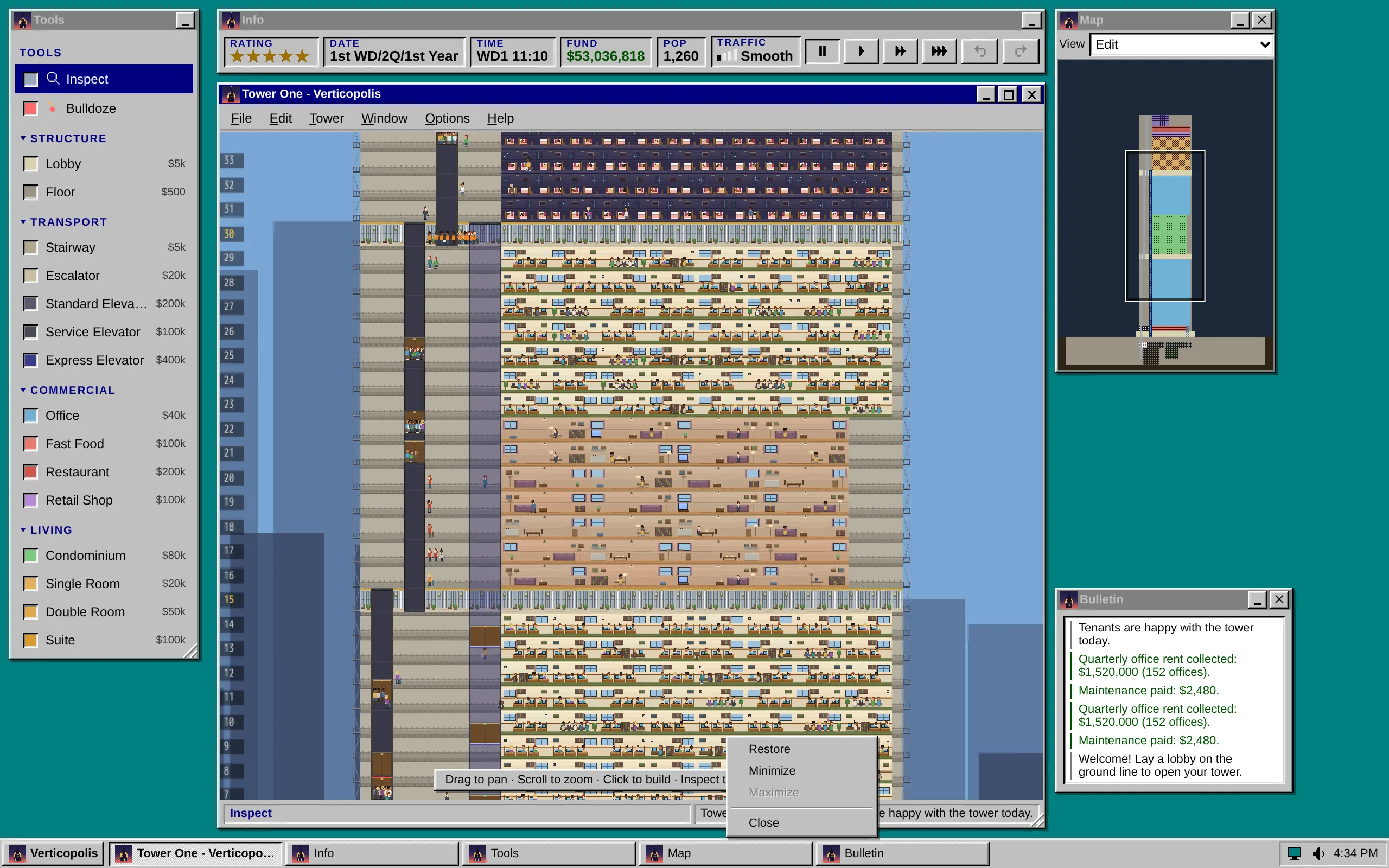
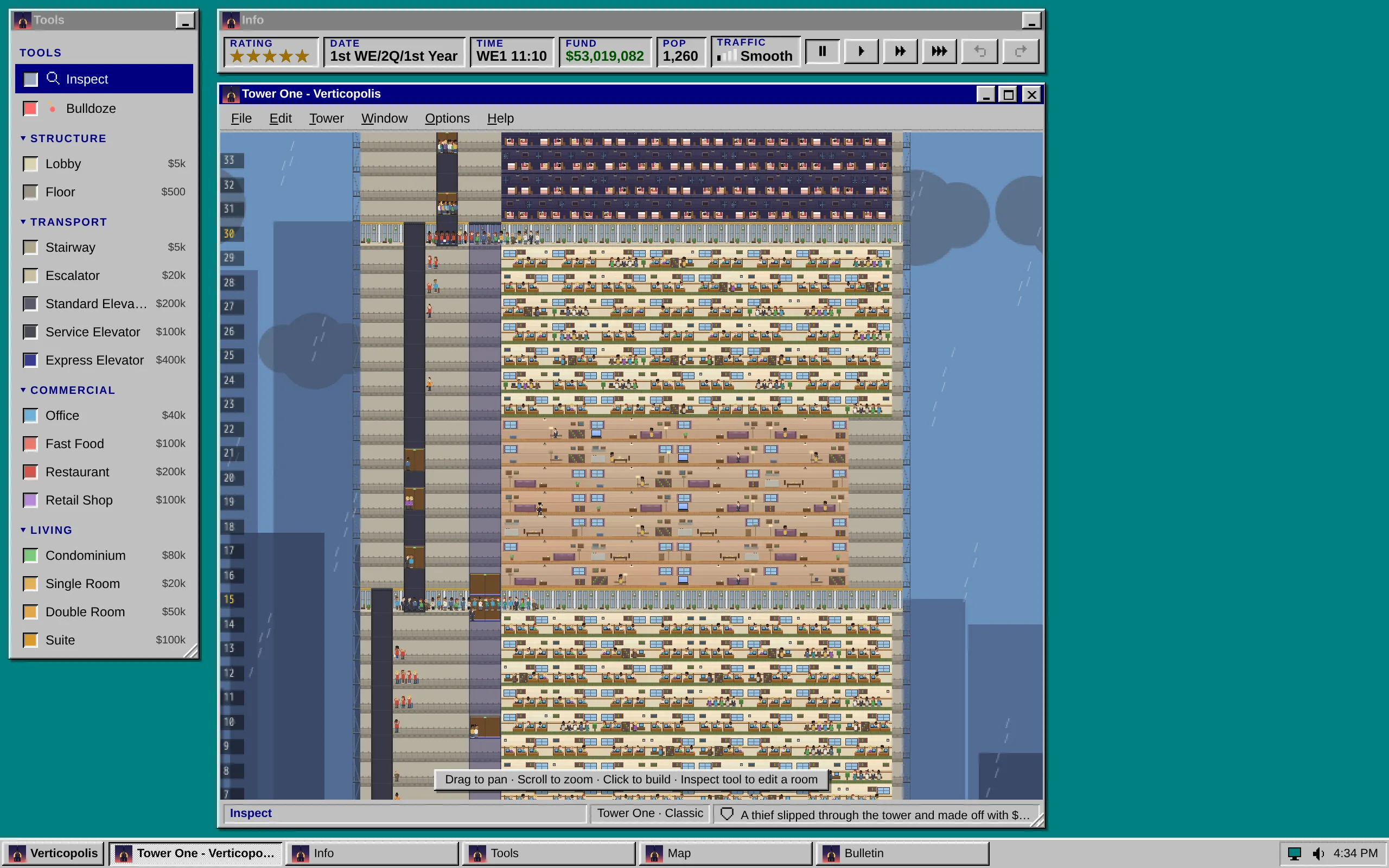
The taskbar has a button for each open window. Click a window’s button to bring it to the front; click the front window’s button to minimize it. A minimized window’s button is raised, the front one’s is pressed in.
At the right end, the tray holds:
- The monitor, which opens the Control Panel.
- The speaker, which turns the sound on or off (the same as Options > Sound).
- The clock, your computer’s time.
The Verticopolis menu
Section titled “The Verticopolis menu”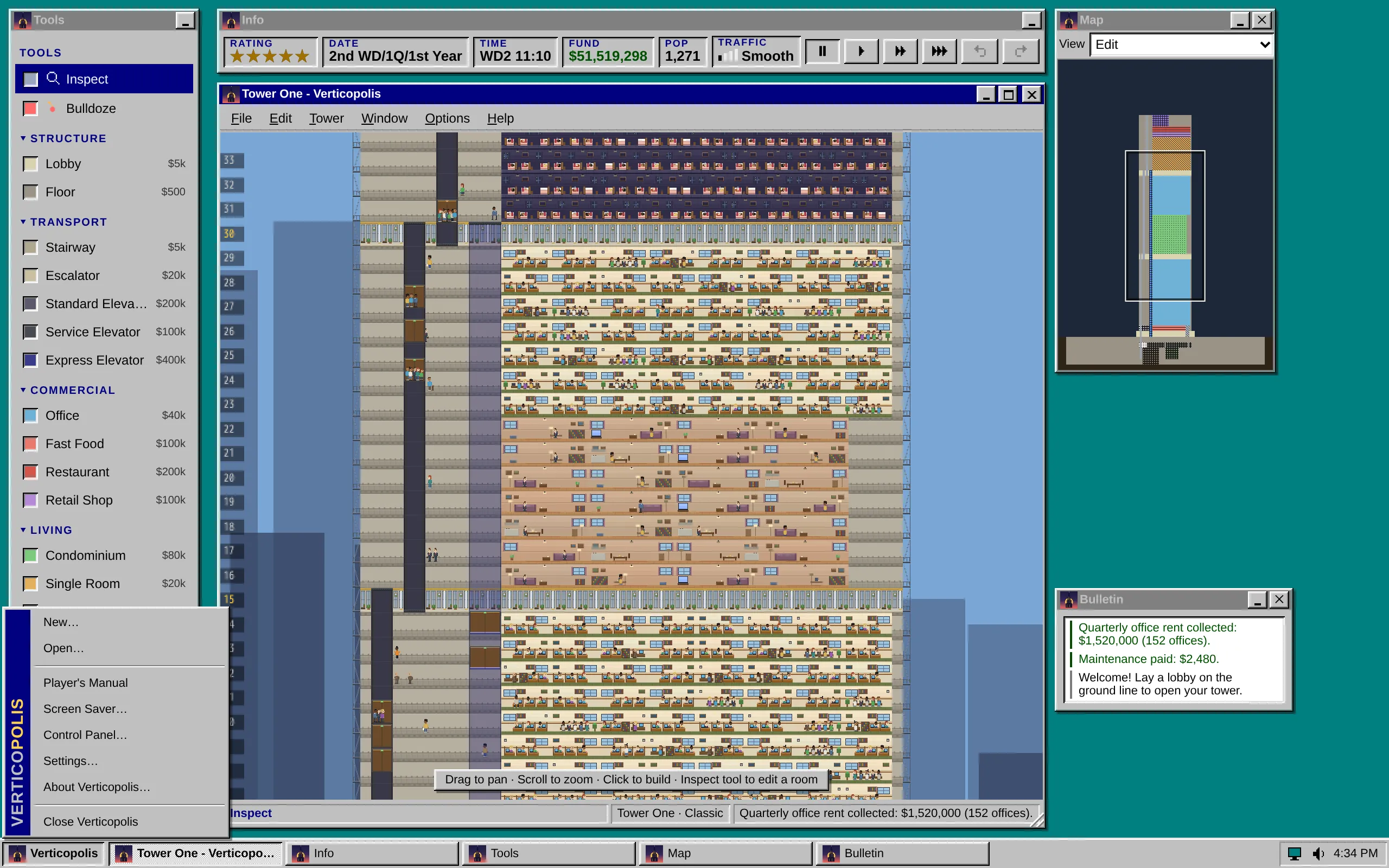
The Verticopolis button at the left of the taskbar opens a menu with New…, Open…, the Player’s Manual, Screen Saver…, Control Panel…, Settings…, About Verticopolis… and Close Verticopolis (which saves your tower and goes back to the opening screen). Use the arrow keys to move through it, and Esc to close it.
The Control Panel
Section titled “The Control Panel”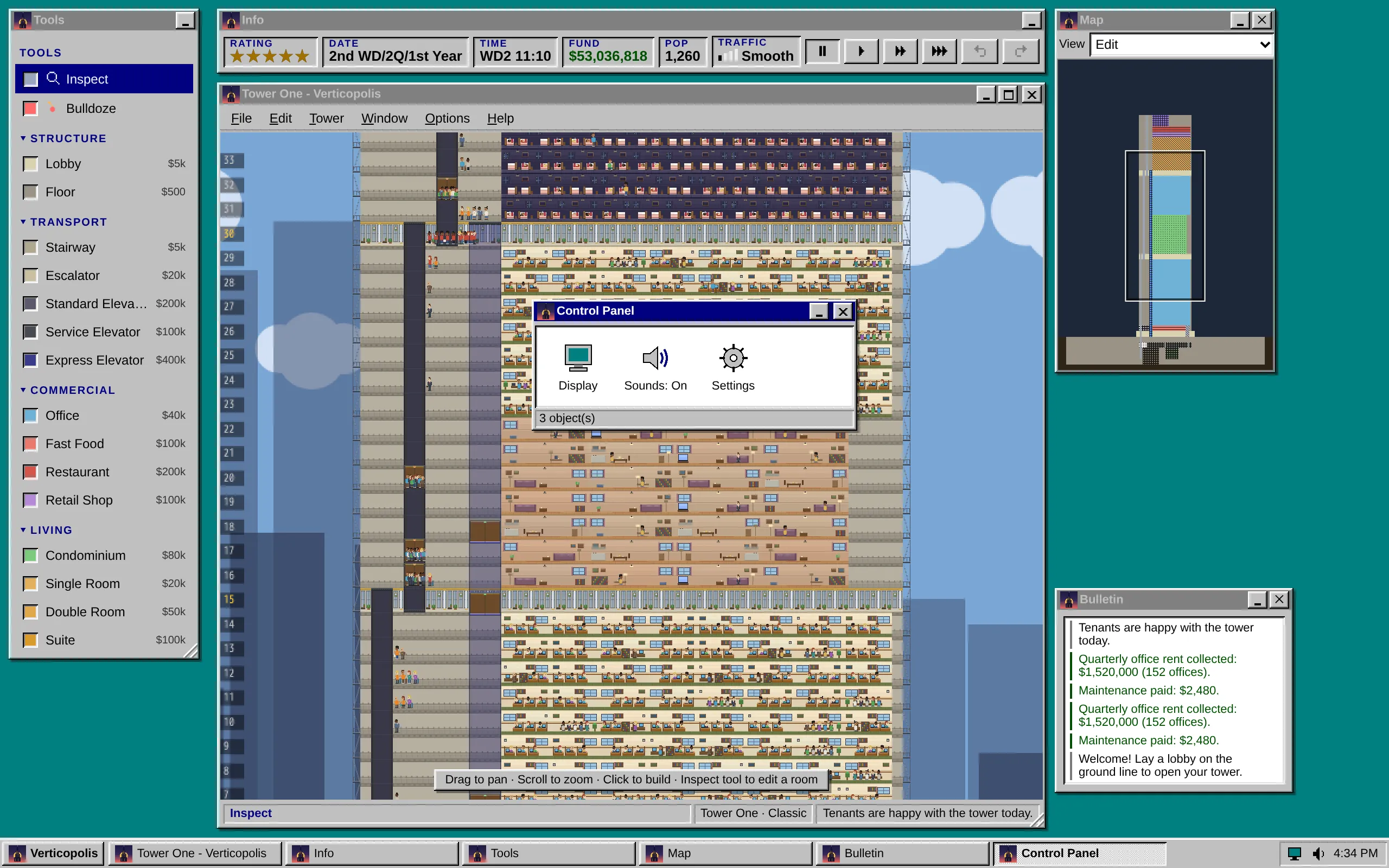
| Icon | Does |
|---|---|
| Display | Opens the Screen Saver dialog |
| Sounds | Turns the sound on or off; its name says which (Sounds: On) |
| Settings | Opens the game’s Settings |
The opening screen
Section titled “The opening screen”On a computer the opening screen sits in its own Verticopolis window on the desktop, with the dusk poster on top and its buttons below.
The startup screen
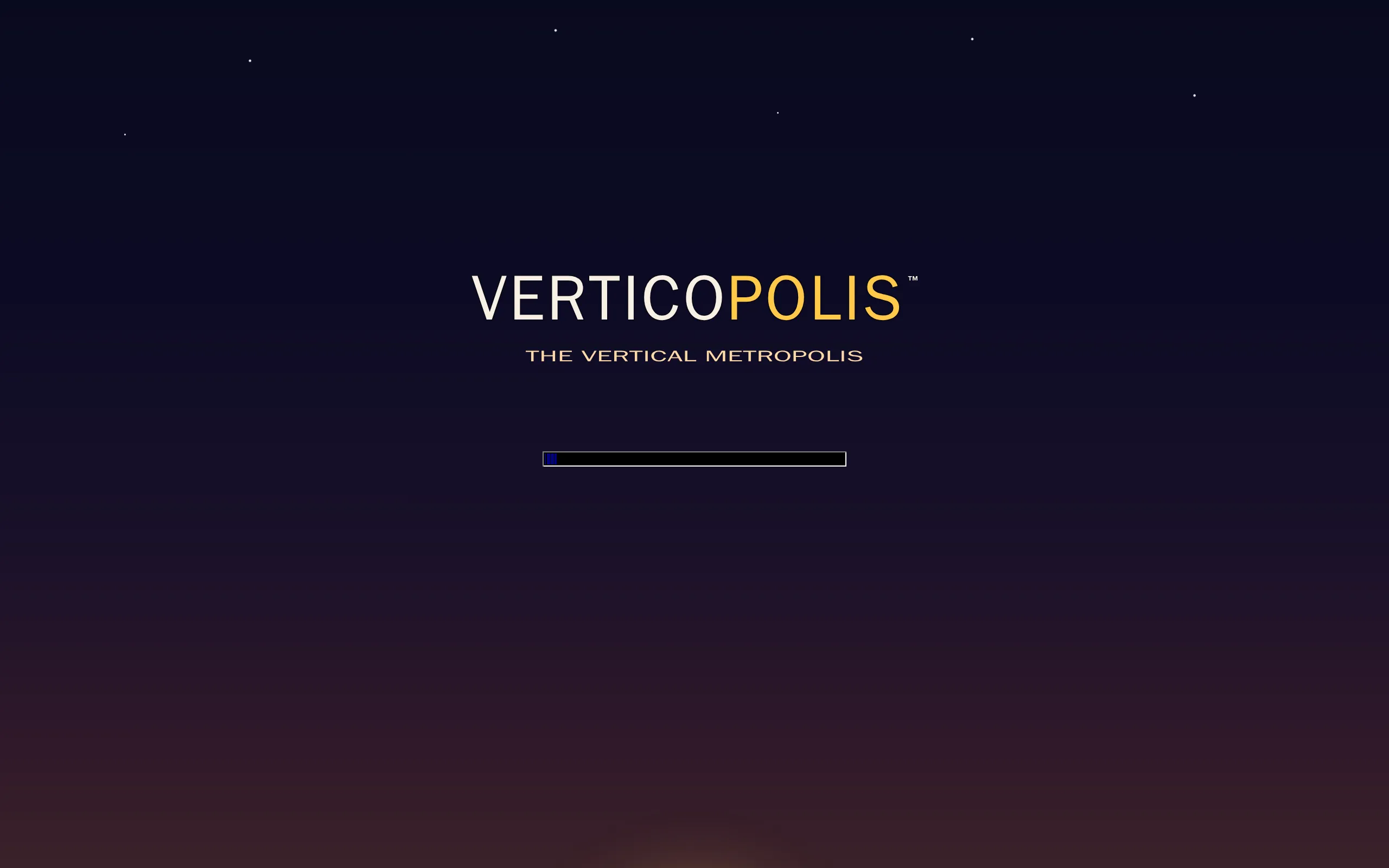
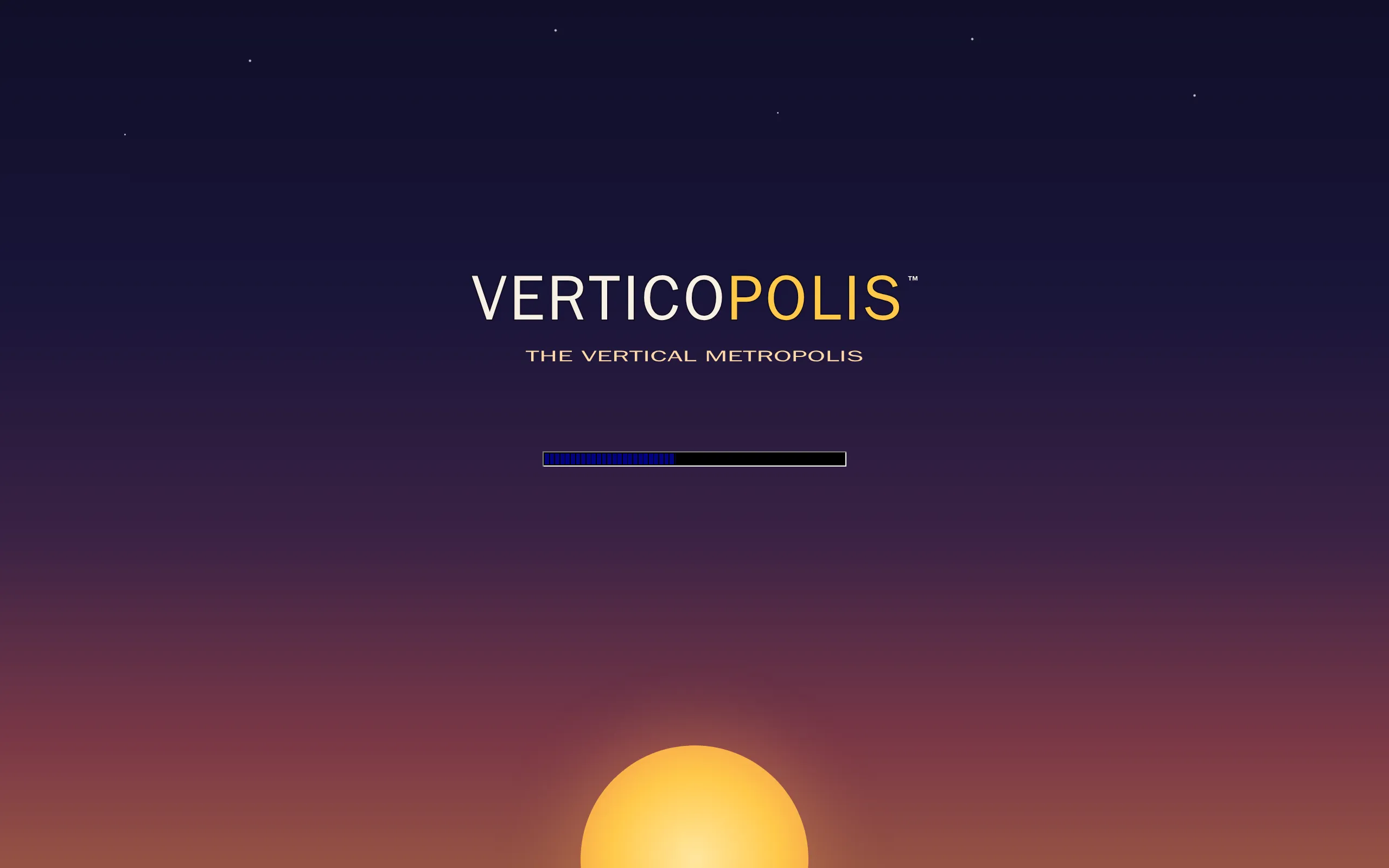
Section titled “The startup screen”Every time the game loads, on a computer or a phone, it opens at night. The sun comes up behind the name while the progress bar fills, and the opening screen takes over at dawn. A fast load is a quick dawn: the game never waits on the sunrise. If your device asks for reduced motion, the startup screen skips straight to dawn.

Trying the desktop on a tablet
Section titled “Trying the desktop on a tablet”To try the desktop on a tablet, or on a phone in its browser’s desktop mode, add ?desk=on to the game’s address. The game remembers it until you add ?desk=off, which turns it off again.
See also
Section titled “See also”- Map and windows for what each window shows
- Controls for the mouse and keyboard